On the back of each Oriflame campaign catalogue is a space to put your contact details as the Independent Brand Partner so that your customers can contact you easily.
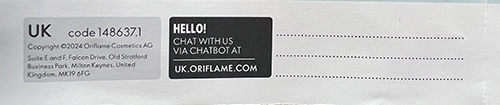
If you fancy putting a pre-printed label there instead but don’t know where to start, read on…
What you will need
- Labels – to fill the space available but not overlap anything else, the dimensions 64mm x 30mm are perfect. Amazon, unsurprisingly, offers a huge range of labels. I bought these and am perfectly happy with them. I am certainly not worried about the tiny differences in the size.
- Printer – doesn’t matter whether it is laser or inkjet.
- Web browser – if you are willing to use, and then customise, one of the many templates available.
- PDF reader – most computers, mobile phones, tablets have software that can display PDF files.
Avery Design & Print Online
Avery is one of the biggest labels companies in the world. Their products are great but they are expensive, and for this type of use aren’t value for money.
They offer a Design & Print Online service as an app that works in your browser that you can use to create designs for their labels. It does the hard work of duplicating the design of one label across the whole page. Avery also typically provides free MS Word templates for their labels but you have to do the copy & pasting work yourself.
Here comes the clever bit – you can use the Design & Print Online service to create designs that you can print on other cheaper labels, even though the sizes may differ very slightly! All you need to do is find the Avery code for the equivalent label. In the case of the labels that I bought, 64×30-R, does very nicely.
Customising the label
There are a lot of designs available, including blank ones. However, what is absolutely amazing is the amount of customisation that you can do. From the obvious adding your own text, through adding images to even creating your own QR codes. There is an option of adding sequential numbers so that each label is different. The software warns you about going over the “edge” of the label to make sure that everything you want on the label is printed correctly. If you are particularly graphics savvy, you can even upload your own complete design and let the software do the fiddly bit of replicating the design across the whole page.
Downloading the finished page
Once everything is as you want it, you can download the page as a PDF file.
Printing the labels
The downloaded PDF file can then be printed on your printer but there are some important points to make sure that the labels are printed correctly.
- Select the correct Paper Size (likely A4) and be sure that the Scale is set to 100% (not Fit to Page)
- You need to make sure that the printer knows that it will be printing on labels as that will affect how the ink/toner is laid down on the page and the speed of the printing process. This option is likely to be hidden in the More Settings or Print using system dialog and will be referred to as Paper Type or Media Type. If you don’t set this correctly, then the labels may be blurred.
- If at all possible, I would recommend using the manual feed (or bypass tray) on your printer. If you can’t find that on your printer then remove all the normal printer paper before putting in the blank labels. You may need to experiment slightly to work out the orientation of the labels but it shouldn’t be too difficult.
Other uses
Given the huge range of Avery labels available, you can even use this system to create A4 pages that have multiple copies of smaller designs, such as A5 leaflets. All you need do is find the closest template in size to your design.